

Protect the schedule
Block time and manage availability
Set the venue's normal bookable hours, then add a focused block when maintenance, training, or an event should stop new bookings.
Open venue availabilityBefore you start
- Confirm which assigned venue and machine the schedule change should affect.
- Decide whether you are changing normal weekly hours or adding a temporary one-off or recurring block.
- Check existing confirmed bookings first. New restrictions stop future bookings but never cancel confirmed sessions automatically.
- Portal
- Machines
- Schedule
- Add block
Use Availability for the venue's normal weekly hours. Use a machine's Schedule action for maintenance, club training, private events, and other temporary blocks.
- 1
Review weekly bookable hours
Open Availability, select the assigned venue, and check each open day and time window. Change these hours only when the venue's regular weekly operating pattern has changed.
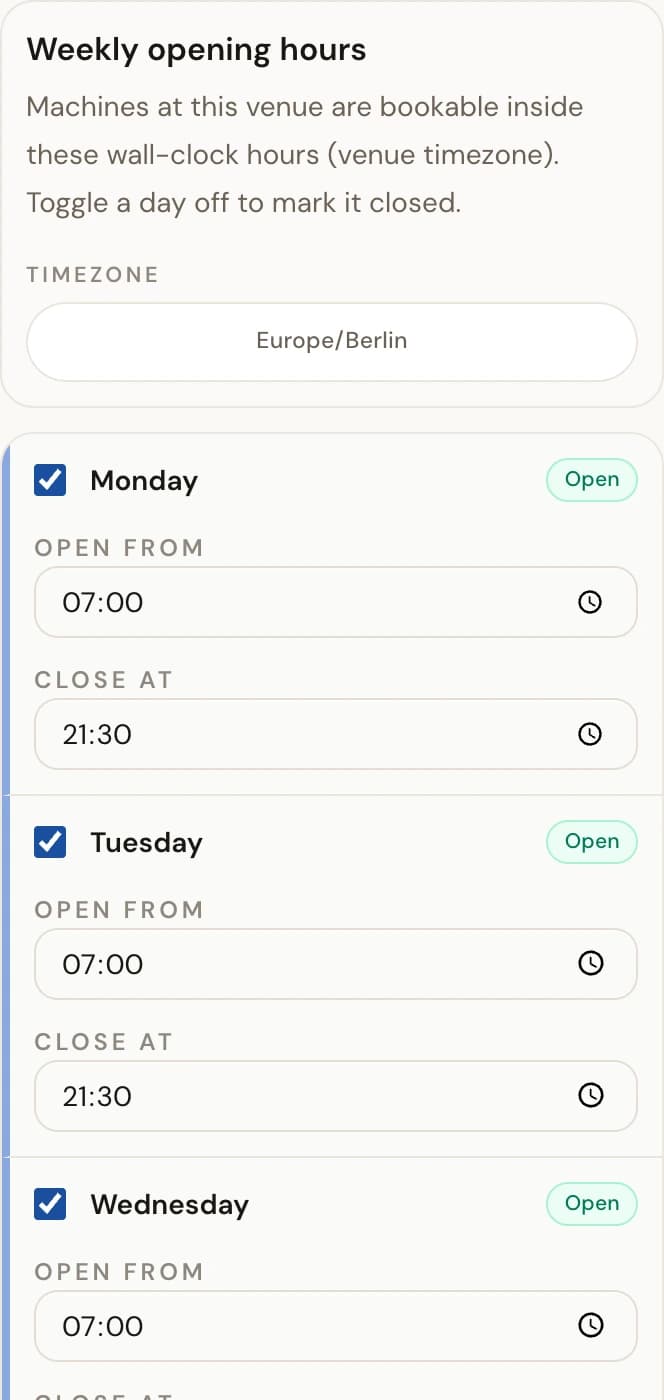
The weekly opening hours editor: each day has an open toggle and its bookable window. - 2
Save weekly-hour changes
Check the displayed venue timezone, then select Save changes. These hours apply across the venue and feed every offer that uses its availability.
- 3
Open the machine schedule
For a temporary restriction, open Machines, find the affected machine, and select Schedule. Use All machines in venue only when the reason truly affects the whole venue.
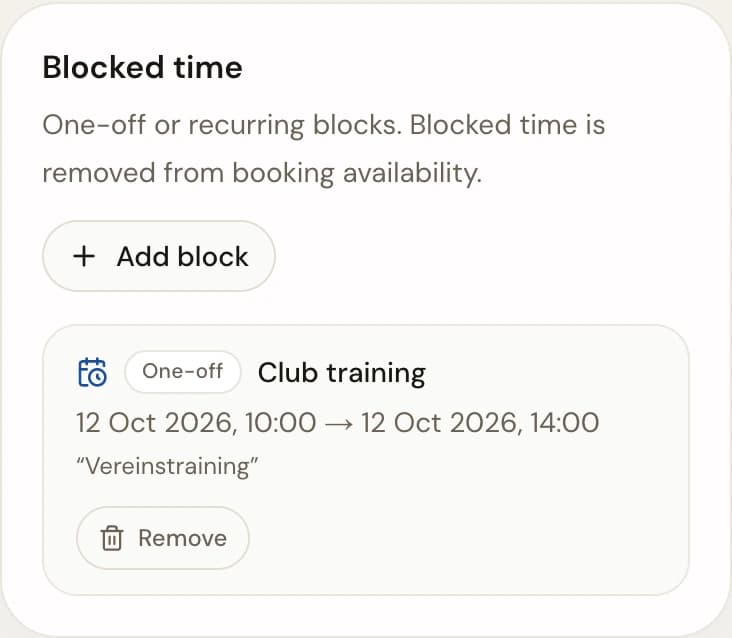
The machine schedule lists every scheduled block; Add block starts a new one. - 4
Add the block
Choose One-off or Recurring weekly, enter the correct dates or days and times, select the reason, and add a note when it will help operators understand the change.
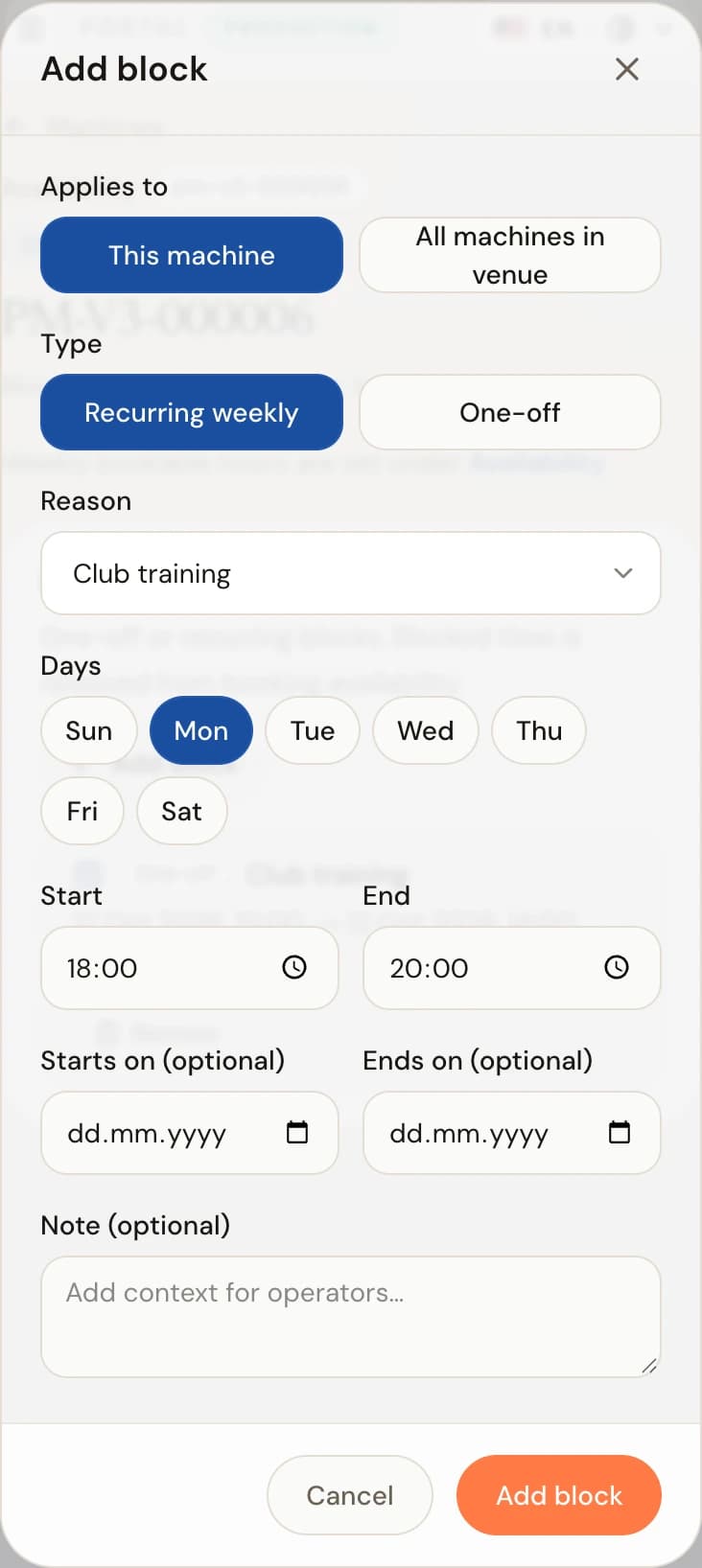
The Add block dialog: scope, type, reason, and the blocked time window. - 5
Review conflicts before finishing
After saving, review every existing booking shown as affected. Those bookings remain valid and require manual coordination; the new block only prevents additional bookings.
Scope
Choose venue or machine
Restrict
Set hours or add a block
Review
Check confirmed conflicts
Protect
Stop new bookings in that time
You're done when
The correct venue or machine shows the intended hours or block, and any overlapping confirmed bookings are visible for manual follow-up.
If something doesn't match
- The wrong machine or venue is selected: cancel without saving, return to Machines or Availability, and reopen the correct assigned record.
- Add block is unavailable: the machine may not be linked to an active venue or your account may not have permission for that venue.
- A block reports existing bookings: do not remove the block just to hide the warning, and do not assume those sessions were cancelled. Coordinate each booking separately.
- The time appears shifted: check the venue timezone shown in the workspace before editing dates or hours.