

Your first day
Get set up as a venue manager
Accept your invitation, activate portal and app access with one email address, and confirm your venue is ready before your first shift.
Open your venue overviewBefore you start
- Ask your PeachMe administrator to invite you: the invitation email goes to your address and its link is valid for 48 hours.
- Know which venue or venues you will manage; your account only ever opens those.
- Have your phone ready for the PeachMe app — the handover scanner runs on it.
- Invitation email
- Accept invitation
- Portal
Everything starts from the invitation email. Accepting it signs you in to the portal immediately; the mobile app uses the same email address afterwards.
- 1
Accept your invitation
Open Accept invitation in the PeachMe email. The link works once and expires after 48 hours; if it has expired, ask your administrator to resend the invitation and use the fresh link.
- 2
Set your name and password
The acceptance page already shows your email and role. Enter your display name and a password of at least 8 characters. You are signed in automatically and land in the portal — no separate email confirmation is needed.
- 3
Sign back in with your email
Later sign-ins happen on the portal sign-in page: use your email address as the username. There is no self-service password reset yet, so if you lose the password, contact your PeachMe administrator.
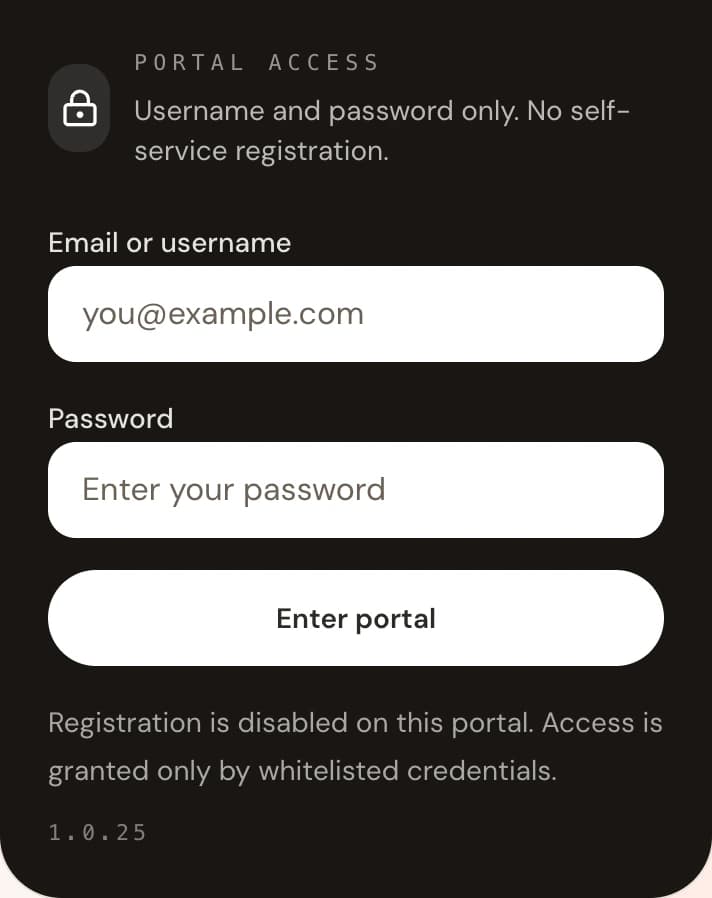
The portal sign-in card: your email address is your username. - 4
Check your venue overview
The overview shows your assigned venues, machines, and their live signal. A warning about unresolved venue scopes means your access does not match a live venue record yet — ask your administrator to correct the assignment.
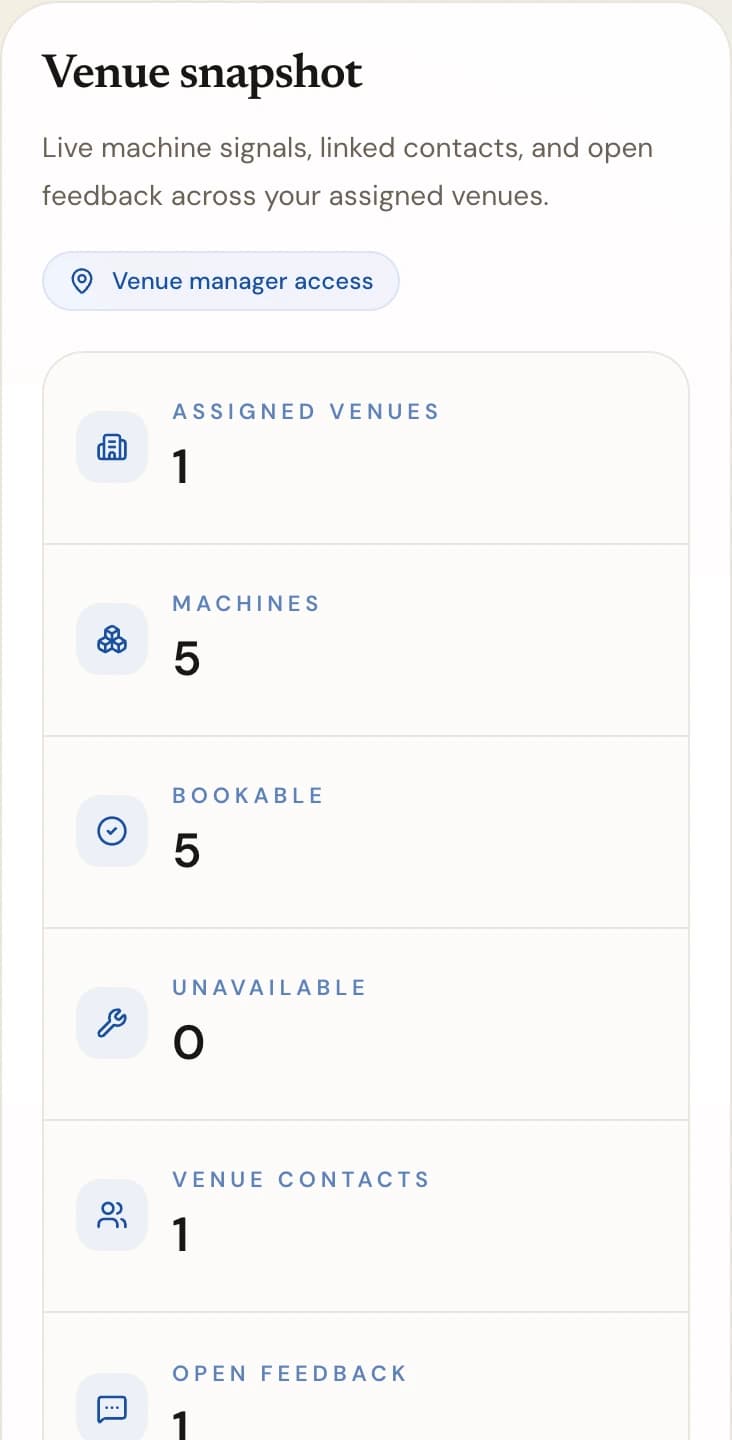
The venue snapshot after signing in: assigned venues, machines, and their availability at a glance. - 5
Install the PeachMe app and sign in
Install the PeachMe app on your phone and sign in with the same email address. Your app password starts identical to the portal password you just set; if you already had a PeachMe member account, your existing app password stays. The Court desk manager tab appears automatically.
- 6
Allow camera access for the scanner
Open Scan QR from the Court desk once and allow camera access when the app asks. The scanner is how you hand over and receive machines at the court.
- 7
Issue trial vouchers when enabled
If PeachMe has enabled a trial-voucher policy for you, create codes under Vouchers in the portal, only for your assigned venues. Each member can redeem one trial voucher ever, so hand codes out deliberately.
Invited
Accept within 48 hours
Activate
One password for portal and app
Verify
Venue, machines, and hours
Ready
Scanner allowed and tested
You're done when
You can sign in to the portal with your email, the venue overview shows your assigned venue without warnings, the app shows the Court desk tab, and the scanner has camera access. You are ready for your first handover.
If something doesn't match
- The invitation link reports expired or already used: ask your administrator to resend the invitation; each resend issues a fresh 48-hour link.
- The acceptance page says an account already exists for this email: sign in on the portal sign-in page instead of accepting again.
- The Court desk tab is missing in the app: confirm you signed in with the invited email address. If it still does not appear, your account may be missing a venue assignment — contact your administrator.
- The overview shows no machines: machines are mapped to your venue by PeachMe operations, and the list fills once an assigned machine reports telemetry. This is not something you configure yourself.
- You forgot your portal password: there is no self-service reset yet — your PeachMe administrator can restore your access.